
Setting Up eWay
Required Credentials
API Key (Secret Key)
API Password
Public Key (Publishable Key)
Camper BMS provides technical integration only. Your eWAY merchant account must be active and have Rapid API access enabled before payments will function. If Rapid API is not enabled, contact eWAY support to request activation.
eWay may require you to submit PCI DSS documentation to activate your account.
Camper BMS does not provide PCI certification or compliance assessments.
Camper BMS does not store, process, or transmit full payment card details.
You can learn more about what security controls Camper BMS has in place here.
Finding Your Credentials
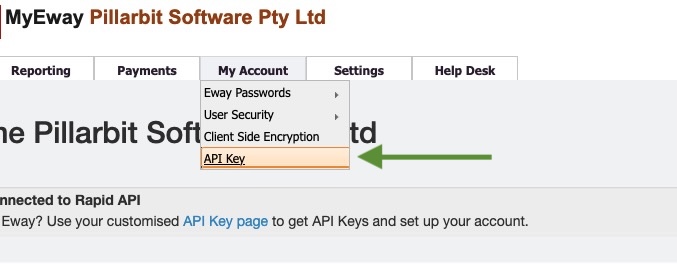
Log in to your eWay account (MyEway).
Navigate to My Account > API Key.
Under Rapid API Information, your API Key is shown next to API Key, and your API Password is the Password field. If you don't have a password yet, click Generate Password.
Your Public Key is shown further down the same page, under Pay Now Button, labelled Pay Now Button Public API Key.
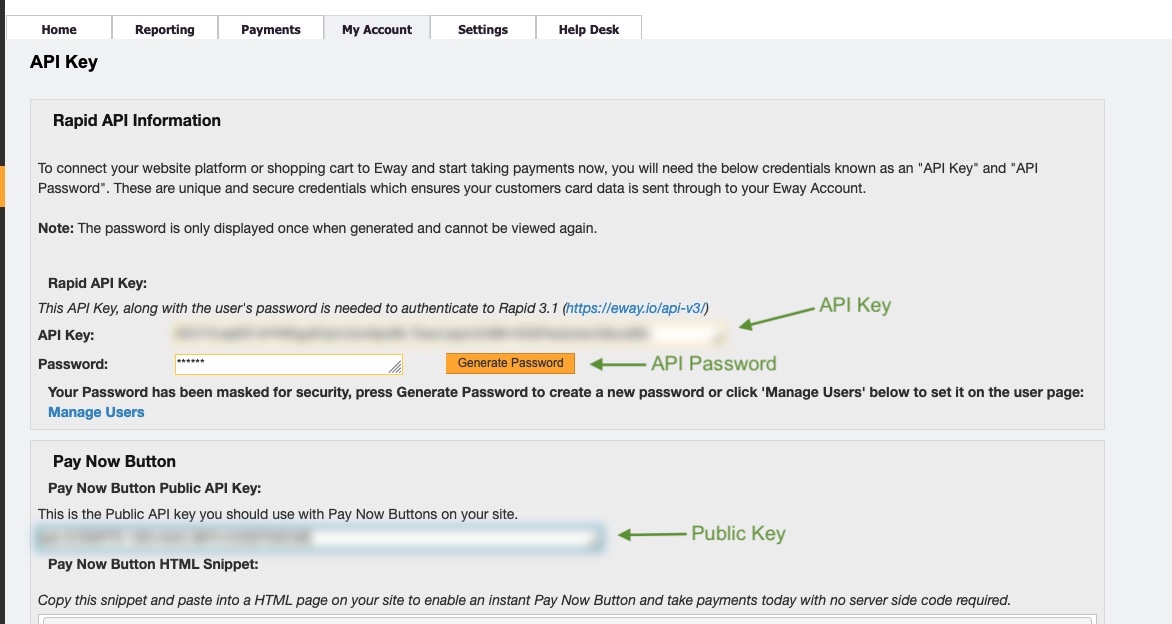
Your API password is only displayed once, at the moment it is generated, and cannot be viewed again afterwards. Copy it into Camper BMS straight away, or generate a new one if you have lost it.
Entering Credentials in Camper BMS
Navigate to Settings > Payments & Invoicing > Payment Gateway.
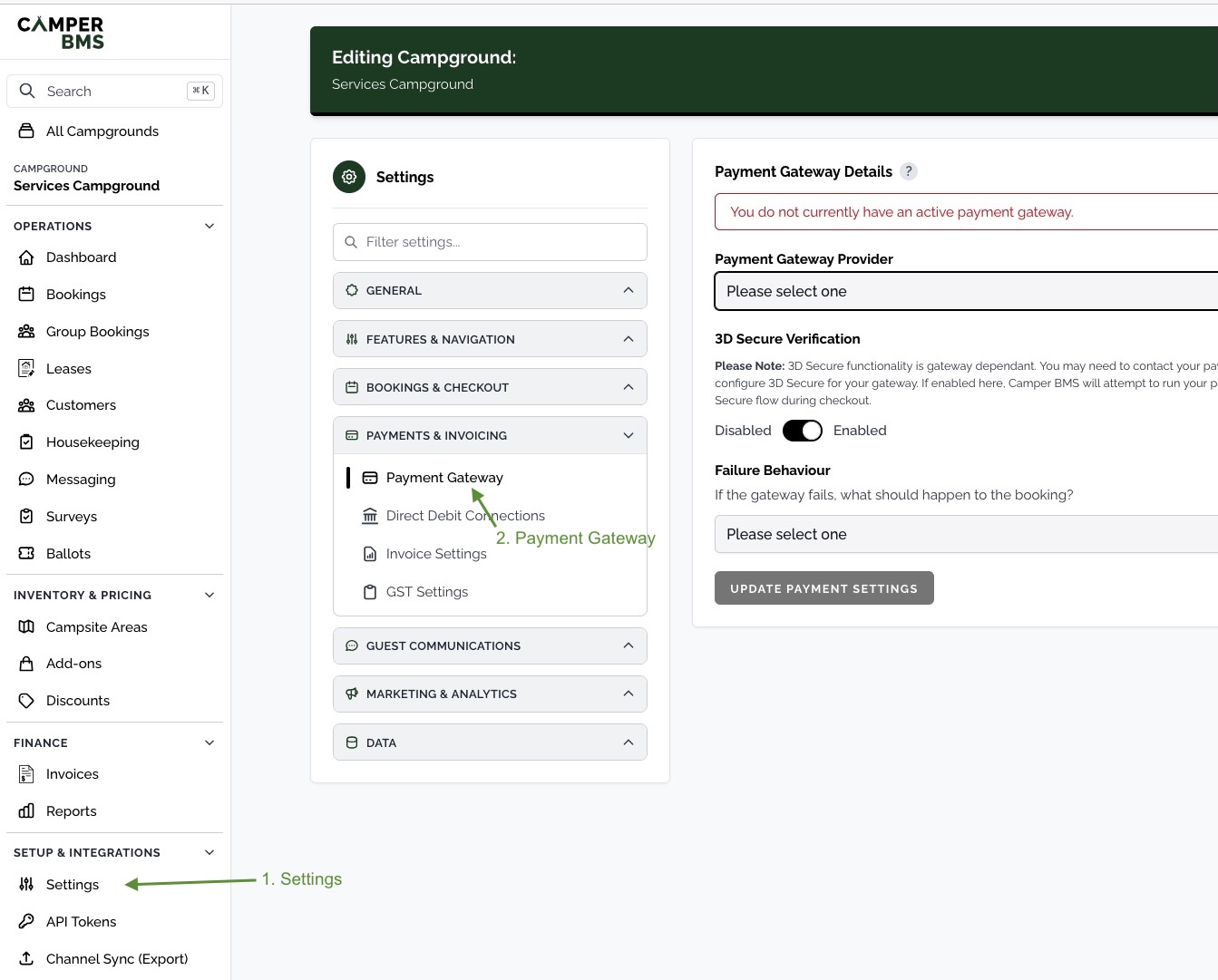
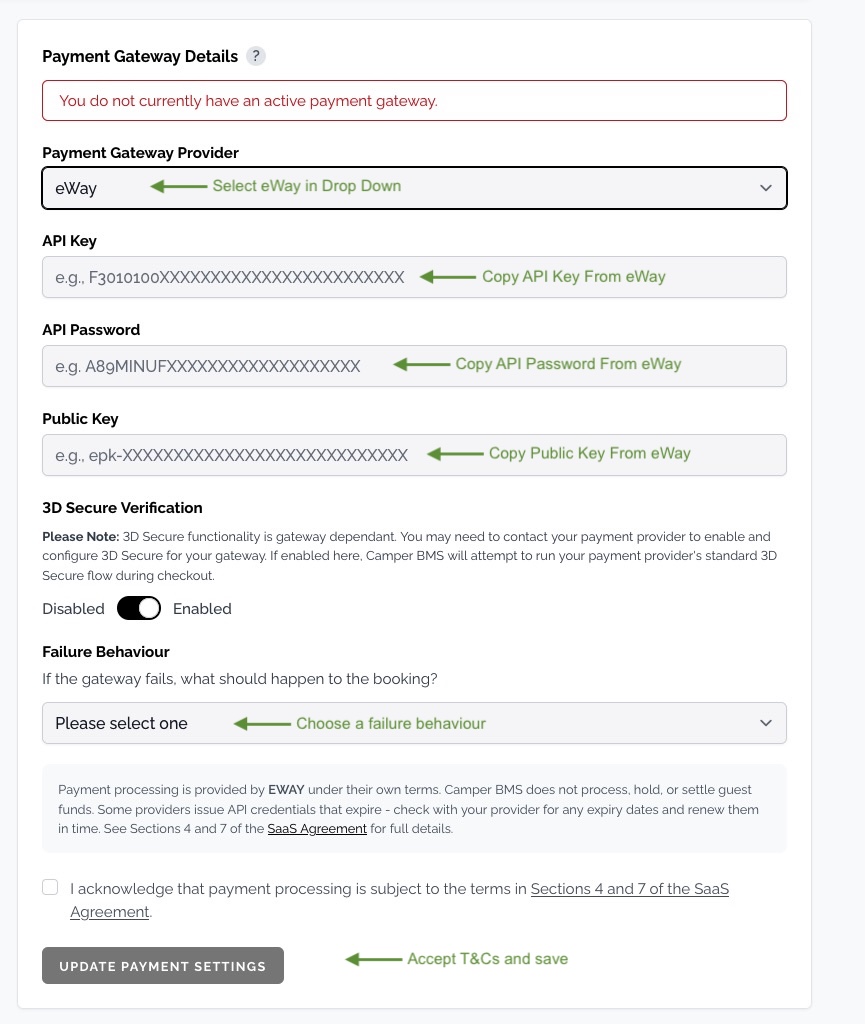
Select eWay from the Payment Gateway Provider drop-down.
Enter your API Key, API Password, and Public Key in the corresponding fields.
Optionally enable 3D Secure Verification. This is gateway dependent - you may need to contact eWay to have 3D Secure enabled on your merchant account before turning it on here.
Choose a Failure Behaviour - this controls what happens to a booking if the gateway declines or fails the payment.
Tick the acknowledgement to accept the payment processing terms, then click Update Payment Settings.
Keep your API credentials secure. Anyone with access to your API credentials may be able to process payments through your merchant account.
Related articles
Still need a hand?
Our support team is happy to help.
Contact support